
7 Easy Steps to Calculate Your Azure Pricing (Using the Azure Pricing Calculator)
Why Use the Azure Pricing Calculator?

- Transparency: See upfront costs for every Azure service.
- Customization: Configure resources based on your actual needs, not generic templates.
- Comparison: Experiment with different setups and regions to find the most cost-effective approach.
- Exportability: Share estimates with your team or management in various formats.
Getting Started: Accessing the Azure Pricing Calculator
- Visit:Pricing Calculator | Microsoft Azure
- No sign-in is required for creating estimates, but logging in allows you to save, share, and revisit them later.
Step-by-Step Guide: Using the Azure Pricing Calculator
Step 1: Navigating the Interface
- Browse or Search for Services: Use the search box or scroll through categories (Compute, Databases, Storage, etc.) to find the Azure resources you want to estimate. For example, to price a Virtual Machine, type “Virtual Machine” and select it.
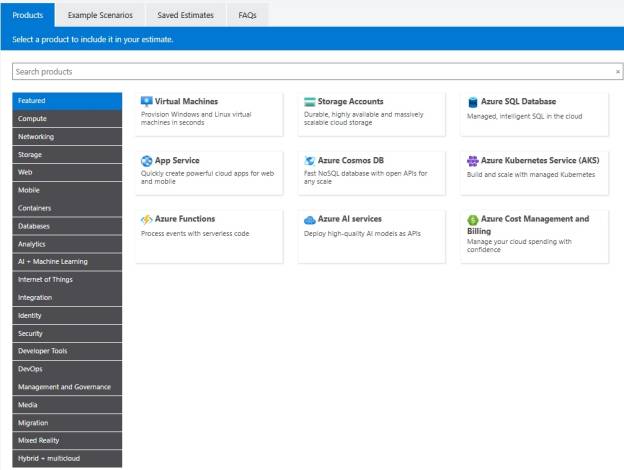
Step 2: Adding a Product to Your Estimate
- Configure Region
Azure pricing varies by location due to local infrastructure and energy costs. Choose your region (e.g., East US, West Europe) for an accurate estimate.
- Select Options: Each product has configurable parameters. For a Virtual Machine, these might include:
- Operating System (Windows/Linux)
- Instance Tier (Basic/Standard, etc.)
- VM Series and Size (e.g., D2s v3)
- Number of Instances
- Hours per Month (e.g., always on or only certain hours)
- Licensing Options(e.g., including or excluding software licenses)

Step 3: Adding and Configuring Additional Services
- Storage Accounts
- SQL Databases
- Load Balancers
- App Services

Step 4: Reviewing and Adjusting Your Estimate
- Rename line items for clarity (e.g., “Production VM,” “Dev DB”).
- Duplicate items to try out variations (e.g., different VM sizes).
- Use the “Show Dev/Test Pricing” option for non-production workloads if available.

Step 5: Understanding Price Breakdown

Step 6: Exporting and Saving Estimates
- Click “Export” to download as Excel or PDF for sharing or documentation.
- If signed in, click “Save” to store estimates in your Azure account for future reference.
- Use “Share” to generate a link you can send to stakeholders.


Step 7: Updating and Comparing Estimates
- Revisit saved estimates to update quantities or options.
- Make copies of estimates to compare scenarios side-by-side (e.g., different regions or storage types).
Advanced Functionality & Best Practices
Incorporating Reserved Instances and Savings Plans
- Select “1 Year Reserved” or “3 Year Reserved” for VMs to see larger discounts compared to pay-as-you-go pricing.
- Try the “Savings Plan” for even more flexible options.
Factoring in Additional Costs
- Data transfer/bandwidth fees between Azure regions or outside Azure.
- Backup and disaster recovery services.
- Support plans (Basic is free, but Standard and higher are paid).
- Licensing for Windows Server, SQL Server, or other Microsoft software.
Using Cost Management and Billing Tools
Tips for Accurate Azure Pricing Estimates
- Specify realistic usage patterns: Don’t just accept defaults—estimate hours/month, expected data traffic, and storage growth.
- Use tags and line-item notes: Label resources in the calculator like you would in the portal for easier mapping.
- Consult with Azure Sales or Support: For complex architectures, Microsoft representatives can help validate your estimates.
- Stay updated: Azure pricing and services evolve rapidly. Always start with a fresh estimate for new projects.
Frequently Asked Questions
Conclusion
Recent Posts
Latest Blogs

The Shift from AI Experimentation to AI Operations
Enterprises are moving from AI experimentation to full-scale AI operations in 2026. Discover how agentic AI, digital workers, Zero Trust security, and Azure platforms are transforming IT, data governance, and enterprise productivity.

How Agentic AI is Transforming IT Services And What It Means for Your Business
Imagine an IT support system that doesn’t just wait for a ticket – it detects the issue before your employee even notices it, diagnoses the root cause, resolves it autonomously, and logs a report, all without a human lifting a finger.

Microsoft Strengthens Security and Engineering Quality: What It Means for Enterprise AI in 2026
As enterprise AI adoption accelerates across the United States, Microsoft has reinforced two mission critical priorities: security and engineering quality. The appointment of Hayete Gallot