
Microsoft 365 Copilot Agent Builder Templates: How to Build Smarter, Faster AI Agents
If your team has been delaying AI adoption because building agents sounds too technical or time-consuming, there is good news. Microsoft 365 Copilot Agent Builder templates give you a faster, simpler way to create useful AI agents without coding. In just minutes, you can move from idea to working agent using pre-built templates designed for common business scenarios. At Cloud 9, we have seen this capability help organizations accelerate productivity, improve knowledge access, and simplify repetitive work across teams.
Quick Takeaway
Microsoft 365 Copilot Agent Builder templates are pre-configured starting points that include instructions, prompts, and built-in best practices. You can launch one quickly, customize it for your workflow, and create an AI agent that supports your team with minimal setup effort.
What Exactly Is a Microsoft Copilot Agent?
Before exploring templates, it helps to understand what a Microsoft 365 Copilot agent actually is. In simple terms, a Copilot agent is an AI-powered assistant built to handle a specific task or workflow inside your organization. Unlike a general-purpose chatbot, these agents are task-focused, context-aware, and connected to your Microsoft 365 environment.
Agents can pull information from SharePoint, respond to Teams conversations, draft documents in your company’s voice, generate structured reports, guide new employees through onboarding, or answer repetitive HR queries, all without a human being in the loop for every step.
They live inside Microsoft 365 Copilot and can be built entirely through natural language conversations. You describe what you want, and Copilot shapes the agent around your description in real time.
What Is Agent Builder, and How Do Templates Fit In?
Agent Builder is the built-in no-code and low-code experience inside Microsoft 365 Copilot for creating and managing declarative agents. It sits directly inside the Copilot experience, which means there is no separate portal, no additional setup, and no steep learning curve for business users.
When you open Agent Builder, you have three ways to create an agent:
- Natural Language (Recommended): Describe your agent conversationally. Copilot listens and automatically fills in the name, instructions, and starter prompts while you talk. It’s the fastest way to get something working.
- Manual Configuration: Use the Configure tab to set every field by hand, including the name, description, knowledge sources, capabilities, and behavior instructions. This option is best for highly customized agents that need more precise control.
- Start with a Template (Focus of This Post): Pick a pre-built template that matches your use case. The agent is created automatically with a pre-configured foundation. You then refine and extend it for your specific context.
Templates are the sweet spot for most business users because they combine the speed of the natural-language approach with the structure and completeness of a manually configured agent.
Which Agent Builder Templates Are Available?
Microsoft continues to expand the template library, and the current options already cover many of the most common business scenarios. Below is a quick overview of the templates you are likely to see in Microsoft 365 Copilot Agent Builder today:
- Team Onboarding Agent: Helps new employees navigate their first weeks, answering questions about tools, policies, team contacts, and company resources in a natural conversation.
- Customer Insights Assistant: Rapidly surfaces structured intelligence on customers and competitors, including industry trends, business priorities, and leadership profiles, so teams go into meetings better prepared.
- Interview Questions Assistant: Generates role-specific, inclusive interview questions instantly. Reduces prep time and helps hiring teams run more consistent, equitable candidate conversations.
- Microsoft Expert (IT Support): Answers how-to questions and troubleshoots Microsoft 365 and Copilot issues in plain language, reducing support queue volume and accelerating feature adoption.
- Writing & Presentation Coach: Reviews drafts and offers feedback aligned with your organization’s communication standards and brand tone. It works across emails, decks, reports, and more.
- Team Engagement Agent: Generates ready-to-run engagement and recognition ideas to help managers strengthen team culture without spending hours on planning.
💡Pro Tip from Cloud 9
These templates are intentionally broad so they can work across a wide range of organizations. The real value appears when you connect them to your SharePoint content, internal knowledge sources, and company-specific workflows. That is where tailored guidance from Cloud 9 can make the biggest difference.
How to Use Microsoft 365 Copilot Agent Builder Templates: Step-by-Step
Here’s a practical walkthrough using the Team Onboarding Agent template as an example. The process is identical for every template, and only the starting content changes.
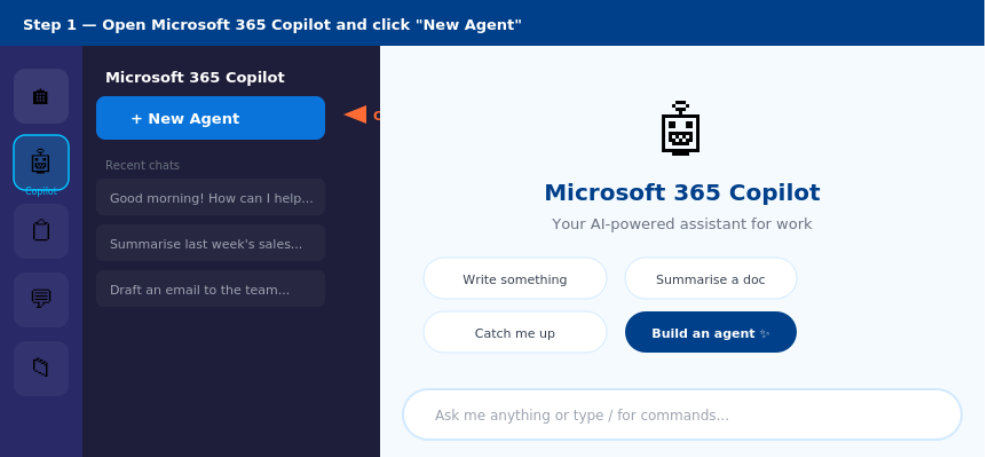
Step 1: Open Microsoft 365 Copilot and click "New Agent"
From the left-hand panel inside your Microsoft 365 Copilot app, whether you are on the web, desktop, or Teams, click New agent. This opens Agent Builder directly in your workspace, with no separate tool to install or launch.
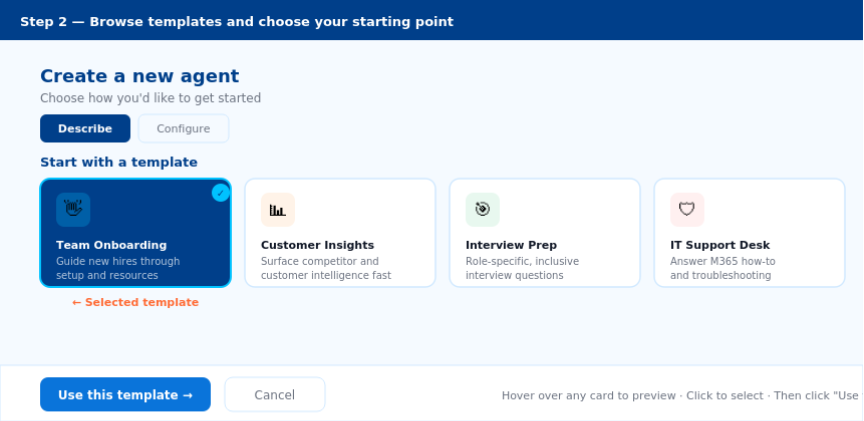
Step 2: Browse the template gallery and choose your starting point
Under Start with a template, you’ll see the available template cards. Hover over any card to preview what it does. Click your chosen template, and it will be created automatically, with a name, description, instructions, and starter prompts already pre-populated.
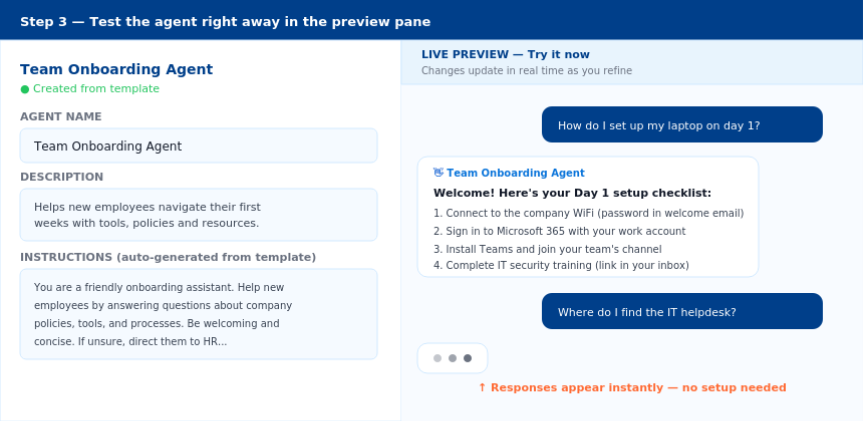
Step 3: Test the agent right away in the preview pane
The preview pane on the right lets you chat with your new agent immediately. Ask sample questions related to your use case to see how it responds. You will quickly get a sense of where the agent needs to be personalized or improved.
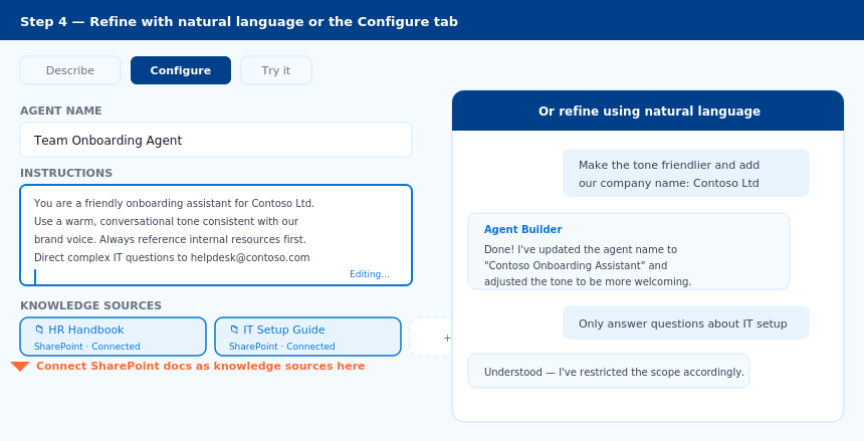
Step 4: Refine with natural language or via the Configure tab
Want to give it your company’s tone? Restrict it to a specific product area? Add SharePoint folders or public websites as knowledge sources? You can do all of this just by telling the agent in plain language, or by switching to the Configure tab for more granular control.
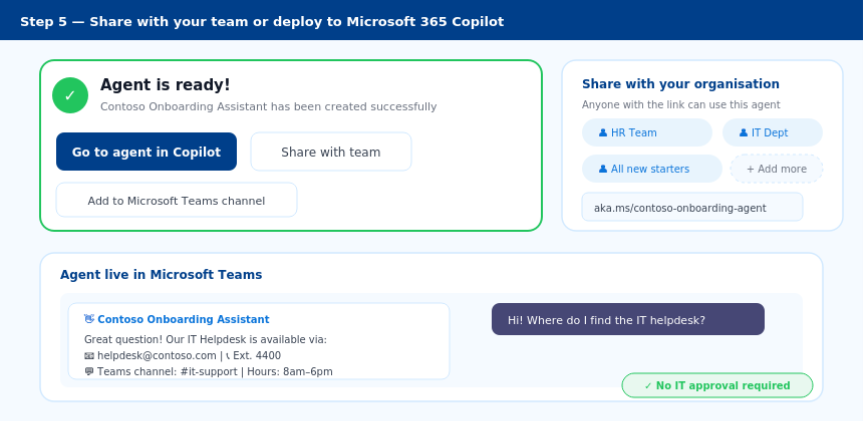
Step 5: Share with your team or deploy to Microsoft 365 Copilot
Once you are happy with the setup, click Go to agent in Copilot to start using it in your conversations, or share it with colleagues across your organization. The result is a much faster path from idea to value
Why Starting from a Template Beats Starting from Scratch
It is easy to assume that building an agent from scratch gives you more control. In practice, however, templates often help you reach the same outcome faster because they remove the time you would otherwise spend figuring out how a well-structured agent should be written and configured.
Each template is built using Microsoft design guidance and proven best practices, helping you start with stronger instructions, more useful starter prompts, and a more consistent user experience from day one.
Think of it like getting a blueprint for a house versus starting with a blank plot of land. The blueprint doesn’t stop you from making the house your own; it just means you don’t spend three weeks figuring out where to put the load-bearing walls.
Cloud 9's Perspective: Why We Recommend Templates as Your Starting Point
At Cloud 9, we have guided organizations through their Microsoft 365 Copilot journey, from initial license deployment through to custom AI agents that support real business workflows. One of the most common mistakes we see is over-engineering the first agent.
Teams often spend weeks debating what the perfect agent should look like when they could already have something live, used by real people, and delivering value within a single afternoon. Agent Builder templates help remove that friction and accelerate time to value.
Here’s our recommended approach: pick a template, get it live in your environment, and watch how your team actually uses it. Real usage patterns tell you far more about what to build next than any planning workshop.
Cloud 9 helps you move through that cycle faster by identifying which templates align with your highest-value workflows, tailoring instructions to fit your organization’s language and policies, connecting the right SharePoint and data sources, and building a roadmap for more advanced agents as your team matures.
This is not a ‘set it and forget it’ technology. The organizations we see getting the most value from Copilot agents are the ones that treat them as living tools that evolve. We’d love to help you become one of them.
3 Tips to Get More Out of Your First Template Agent
Before you hand your new agent over to the team, here are three things our consultants recommend for every template-based agent deployment:
1. Connect a SharePoint Knowledge Source Immediately
Out of the box, template agents draw on Copilot’s general knowledge. They become dramatically more useful when you point them at internal sources, such as your product documentation, your sales playbook, and your HR policy library. This takes about two minutes in the Configure tab but makes a night-and-day difference in response quality.
2. Rewrite the Starter Prompts for Your Team's Language
The default starter prompts that come with each template are intentionally generic. Take five minutes to rewrite them using the exact questions your team actually asks. This single step dramatically increases adoption because people are far more likely to try an agent when the suggested prompts look like something they’d genuinely want to know.
3. Test with Edge Cases Before Sharing Widely
Use the preview pane to ask your agent awkward, unexpected, or out-of-scope questions before you share it with 50 people. An agent that gracefully says ‘That’s outside my scope. Try asking X instead.’ is far more trustworthy than one that confidently fabricates an answer.
Ready to Start? Here's Your Next Step
If you have an active Microsoft 365 Copilot licence, you can open Agent Builder right now — it’s waiting for you in the left panel of your Copilot app. Choose any template from the list, click ‘Use this template,’ and your first AI agent will exist within 60 seconds.
If you want to make sure your agents are set up correctly, connected to the right data, and aligned to a broader AI adoption strategy that supports measurable business outcomes, that is where Cloud 9 can help. We offer hands-on Copilot workshops, agent-building labs, and ongoing enablement programmes that turn early experimentation into lasting value.
Explore how Microsoft 365 Copilot Agent Builder templates can support your AI adoption goals.
Frequently Asked Questions About Microsoft 365 Copilot Agent Builder Templates
What is Microsoft 365 Copilot Agent Builder templates?
Microsoft 365 Copilot Agent Builder templates are pre-configured starting points for declarative agents. They include starter instructions, prompts, and structure so teams can create useful AI agents faster.
Do I need an agent or a connector?
Choose an agent when you need a specialized assistant for workflow, task, or business scenario. Choose a connector when you want Microsoft 365 Copilot to use additional data sources across the broader Microsoft 365 experience.
Who can create and share Copilot agents?
Users can create and share Copilot agents when their organization has enabled the feature and the required Microsoft 365 Copilot licensing or subscription is in place.
Do I need coding knowledge to use Agent Builder templates?
No. Agent Builder is a no-code and low-code experience, so most business users can create, test, and refine template-based agents without writing code.
Can I connect Agent Builder templates to SharePoint or other knowledge sources?
Yes. You can improve a template-based agent by adding SharePoint content and other supported knowledge sources so it can return more relevant business-specific answers.
Where do Microsoft 365 Copilot declarative agents run?
Microsoft 365 Copilot declarative agents run in Microsoft 365 Copilot and across supported Microsoft 365 experiences such as Teams, Outlook, and SharePoint, depending on configuration.
Recent Posts
Latest Blogs

30 Million Microsoft 365 Copilot Seats Later: Is Your Copilot License Paying Off?
Microsoft 365 Copilot has reached 30 million paid seats, but licenses alone do not guarantee value. Learn how to measure adoption, track ROI, optimize usage, and right-size Copilot licensing before your next renewal.

Measuring Generative AI ROI: A Practical Framework for 2026
Learn how to measure Generative AI ROI with a practical 2026 framework. Connect AI costs to business outcomes, track value, manage governance, and build a defensible case for scaling AI investments.

Azure Virtual Desktop Hybrid Is Now Generally Available. Here Is What Changes.
Azure Virtual Desktop Hybrid lets organizations keep session hosts on-premises while using Azure for management and brokering. Learn how Azure Arc, outbound HTTPS and a no-VPN model simplify hybrid desktop deployments.