
25 Microsoft Teams Tips & Tricks Every Business Professional Should Know
Most organisations use Microsoft Teams for basic chat and video calls and leave the rest untouched. That gap in adoption quietly costs teams hours every week. At Cloud 9 Infosystems, a Microsoft 365 Solutions Partner, we have put together 25 practical tips that unlock the features Teams users rely on most from keyboard shortcuts to Copilot AI.
Mac Users
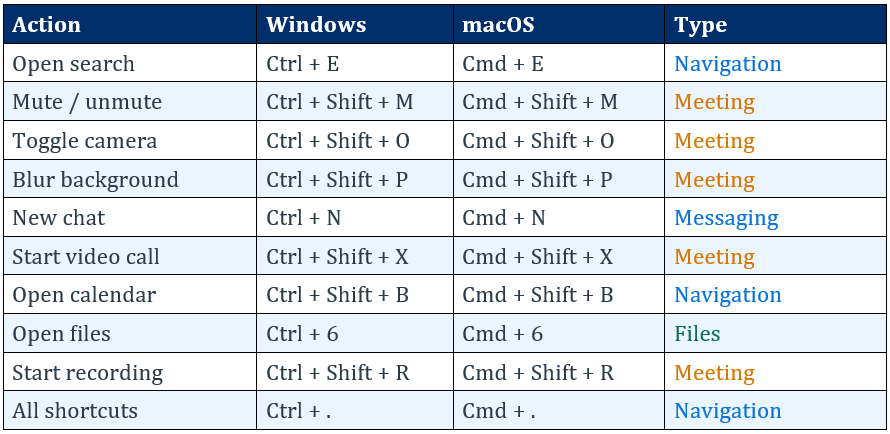
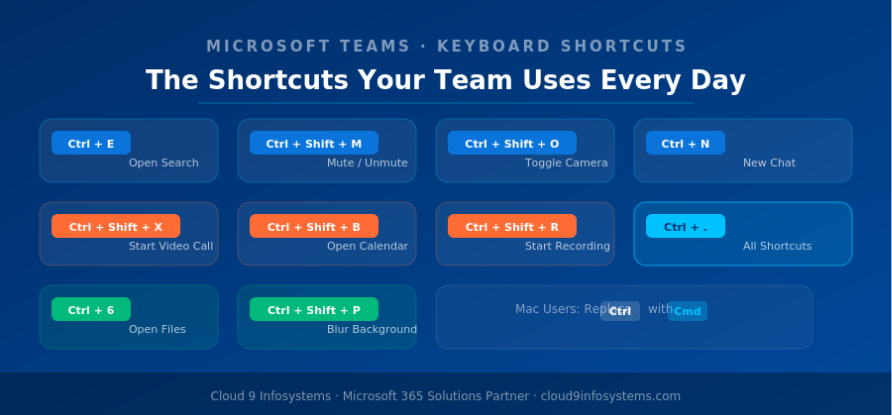
Replace Ctrl with Cmd in all keyboard shortcuts below. Functionality is identical.
What Is Microsoft Teams?
Microsoft Teams is the communication and collaboration hub inside Microsoft 365 — combining persistent chat, video meetings, file storage, and integrations with over 600 apps into one workspace. It is included with most Microsoft 365 business licences at no extra cost.
Category 1: Navigation & Search
01. Master Keyboard Shortcuts
Shortcuts cut seconds off every action — which adds up to hours saved each week. Press Ctrl + . to open the full shortcuts menu at any time.
2: Power Up the Search Bar
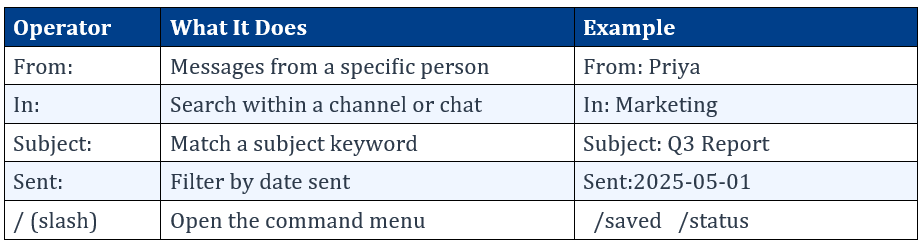
Beyond basic keyword search, Teams supports operators that filter results precisely. Note: no space between the operator and your search term.
3: Use Hashtags to Tag Conversations
Add #hashtags to messages to create searchable labels by project, urgency, or topic. Searching the tag later surfaces every relevant message instantly.
4: Rename Group Chats
Default chat names are just participant lists — unmanageable at scale. Click the pencil icon at the top of any chat and give it a clear, descriptive name.
Category 2: Messaging & Communication
5: Control Your Notifications
Go to your profile picture, then Settings > Notifications to customise alert types and frequency. Enable Do Not Disturb during focused work and set priority contacts whose messages always come through.
6: Translate Messages Instantly
Hover over any message, click (…), and select Translate. Teams auto-detects the language and converts it immediately. For video calls, enable real-time multilingual subtitles via the Translate to menu during the call.
7: Forward Emails to a Teams Channel
Click (…) next to any channel and select Get Email Address. Emails forwarded to that address appear directly in the channel feed, keeping all project communication in one place.
8: Save Messages for Later
Hover over any message, click (…), and choose Save this message. Type /saved in the search bar to retrieve them anytime — a simple built-in action list.
9: Flag Messages as Important or Urgent
Click the (!) icon below the compose box before sending. Important adds a visual banner; Urgent pings the recipient every two minutes for 20 minutes until read. Use it when it genuinely counts.
10. Run Polls Without Leaving Teams
Click the Forms icon below the message box to launch a poll in any channel or chat. Results update live as votes come in. Full guide: Microsoft Forms in Teams.
Category 3: Meetings & Video Calls
11. Upgrade Your Video Background
Before or during any call, go to Audio & Video Settings > (…) to blur your background or replace it with a custom image. A branded company backdrop works well for external calls.
12. Use Meeting Reactions
Hover over the raise hand icon during a meeting to access reactions: 👍 👏 ❤️ 😆. Participants can express feedback without unmuting and interrupting the speaker. See Microsoft’s reactions guide.
13. Transcribe Meetings Automatically
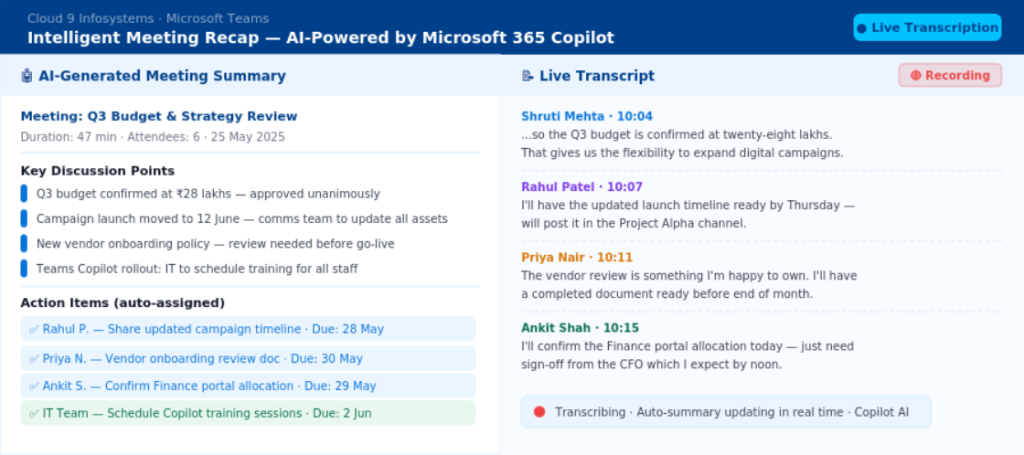
During any meeting: click (…) > Record and Transcribe > Start Transcription. The full transcript saves with the recording and is fully searchable. With a Microsoft 365 Copilot licence, Teams also generates an Intelligent Recap with key points and action items auto-assigned.
Cloud 9 Insight:
Copilot’s Intelligent Recap typically cuts per-person meeting follow-up time from 10+ minutes to under 2. Across a team of ten, that is a significant weekly saving.
14. Enable Mic Auto-Adjustment
Go to Settings > Devices and toggle Automatically adjust mic sensitivity. This compensates for background noise and volume inconsistencies on every call.
15. Use the Scheduling Assistant
When creating a meeting, add your attendees and click the Scheduling Assistant tab. Everyone’s calendars appear side by side so you can spot a mutual free slot instantly.
16. Add a Shared Channel Calendar
Click + in any channel, search for Channel Calendar, name it, and save. Every new event auto-posts a summary to the channel, keeping the whole team aligned on upcoming milestones.
Category 4: Files, Integration & Collaboration
17. Sync Channel Files to Your Desktop
In any channel, go to Files > Sync. OneDrive adds a shortcut folder to your desktop — open, edit, and save files locally while Teams keeps everything in sync automatically.
18. Chat with People Who Don't Use Teams
Start a chat using any email address — the recipient needs no Teams account or app to join. For Slack or Webex users, Mio adds native cross-platform messaging without switching apps.
19. Automate Repetitive Tasks with Power Automate
Install Microsoft Power Automate from the Teams app store and use pre-built templates to automate common workflows — such as posting a channel message when a SharePoint file is updated, or creating a Planner task from a chat. No coding required.
Cloud 9 Insight:
We help teams identify their top five repetitive workflows and automate them in a single session — typically saving 2 to 5 hours per person each week.
20. Navigate SharePoint History
Hover over the back arrow in the top left when browsing SharePoint inside Teams to reveal a dropdown of your last 10 visited locations. Jump back to any file or folder in one click.
21. Brainstorm with Microsoft Whiteboard
Add Microsoft Whiteboard to any channel via the + tab icon. Every participant can sketch, annotate, and add sticky notes in real time — ideal for sprint planning, retrospectives, and any session that benefits from visual thinking.
22. Pin Key Content with Channel Tabs
Click + at the top of any channel to pin files, dashboards, Planner boards, websites, or apps as permanent tabs. Your team’s most-needed resources are one click away, always.
Category 5: AI, Strategy & Advanced Features
23. Get Instant Help from the Teams Support Bot
Access the built-in help assistant by searching for the Help bot in your chats. Ask any feature question in plain language and get step-by-step guidance instantly — backed by Microsoft’s official support documentation.
24. Explore Industry-Specific Adoption Guides
Microsoft publishes free, role-specific Teams adoption playbooks for healthcare, education, finance, manufacturing, and more — covering deployment checklists, use case recommendations, and communication templates tailored to your sector.
25. Harness Microsoft Copilot AI — the Feature That Changes Everything
With a Microsoft 365 Copilot licence, Teams becomes an AI-powered workspace. Here is what it can do:
- Meeting Summaries: Auto-generated recap with key points and action items — no notes needed.
- Conversation Catch-Up: Ask Copilot to summarise any chat thread in seconds.
- Message Drafting: Copilot drafts replies and announcements in your tone. You review and send.
- Custom AI Agents: Build IT helpdesks, HR bots, and policy assistants inside Teams using Copilot Studio — no code required.
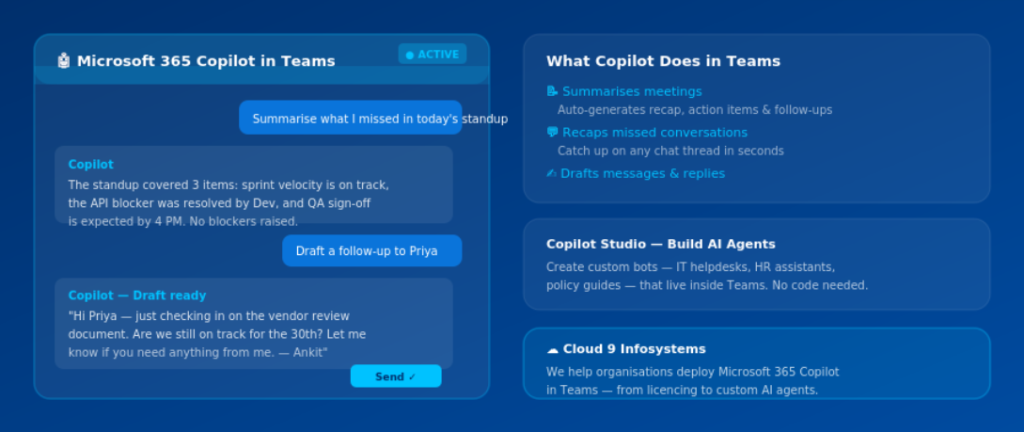
Microsoft 365 Copilot inside Teams: meeting summaries, conversation recaps, message drafting, and custom AI agents.
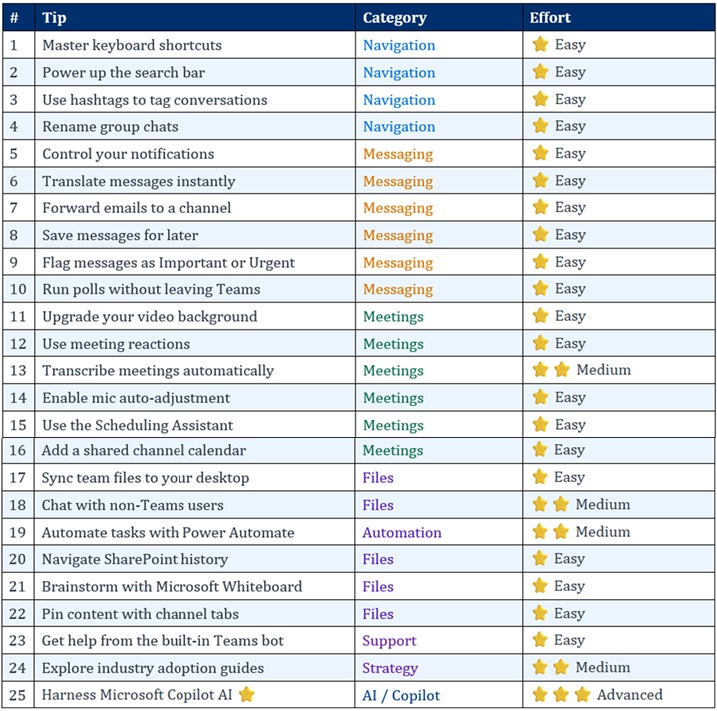
All 25 Tips at a Glance
A Note from Cloud 9 Infosystems
Knowing these tips is a strong start. Applying them consistently across your organisation with the right configuration behind them is where the real productivity gains happen. Consistently applying them across your organisationAt Cloud 9 Infosystems, we help businesses deploy and optimise Microsoft Teams as part of a broader Microsoft 365 strategy including Copilot AI setup, Power Automate workflow design, and end-user adoption training.
If this guide sparked ideas about what your team could be doing?
Frequently Asked Questions About Microsoft 365 Copilot Agent Builder Templates
What is Microsoft Teams used for in a business?
Teams combines chat, video meetings, file sharing, and app integrations into one Microsoft 365 workspace — included with most business licences at no extra cost.
How do I see all keyboard shortcuts in Teams?
Press Ctrl + . (period) on Windows or Cmd + . on Mac. Microsoft’s full reference is available at support.microsoft.com.
Can Teams transcribe meetings automatically?
Yes — click (…) > Record and Transcribe > Start Transcription during any meeting. With Microsoft 365 Copilot, Teams also generates an Intelligent Recap with action items.
What is Microsoft 365 Copilot in Teams?
An AI assistant that summarises meetings, recaps conversations, drafts messages, and enables custom AI agents. It requires a Copilot add-on licence. Cloud 9 Infosystems handles the full deployment.
Can I chat in Teams with someone who has no Teams account?
Yes. Start a chat with any email address — no app or account needed. For Slack or Webex users, Mio adds cross-platform messaging directly in Teams.
How do I forward emails to a Teams channel?
Click (…) next to a channel, select Get Email Address, and forward emails to that address. They appear in the channel feed automatically.
What is Power Automate and how does it work with Teams?
Power Automate is Microsoft’s workflow automation tool. Inside Teams, use it to automate repetitive tasks — no coding required. Cloud 9 helps teams design and build their highest-value flows.
How can Cloud 9 Infosystems help with Microsoft Teams?
We are a Microsoft 365 Solutions Partner offering Teams deployment, Copilot AI setup, Power Automate automation, security configuration, and adoption training.
Recent Posts
Latest Blogs

FabCon Europe 2026: What Fabric IQ and Data Agents Mean for Your Business
Fabric IQ in Microsoft Copilot is now generally available and on by default. Learn what it means for Power BI, its current limits, and a 6-step plan to get your semantic models ready.

Azure Virtual Desktop Regional Host Pools Are Now GA. Here Is Why Your Next Host Pool Should Be Regional.
Azure Virtual Desktop regional host pools are now generally available. Learn how they improve resiliency, reduce shared regional dependencies, support data sovereignty, and help IT teams build stronger AVD disaster recovery designs.

Generative AI Data Security: How to Prepare Microsoft 365 Before You Roll Out Copilot
Generative AI data security starts with securing the data Microsoft 365 Copilot can access. Learn how to fix oversharing, protect sensitive content, control AI use and prepare your Microsoft 365 environment for a safer Copilot rollout.