
How Copilot Chat in Microsoft 365 Apps Is Changing the Way Teams Work
Artificial intelligence is no longer a separate tool your employees have to seek out. With Microsoft’s latest update to its productivity suite, AI assistance is embedded directly inside the applications your teams already rely on every day. Copilot Chat is now available as a native, side-by-side experience across Microsoft 365 apps, including Word, Excel, PowerPoint, OneNote, and Outlook, bringing conversational AI into the heart of day-to-day work.
For business leaders evaluating their Microsoft 365 investment, this development changes the calculus on AI adoption. The question is no longer whether your organization should use AI at work. The question is whether your teams are set up to use the AI that is already inside their tools.
Understanding how Copilot Chat works, what it can do at different license tiers, and how to deploy it effectively is the right starting point for any organization looking to get real, measurable value from Microsoft 365.
Copilot Chat as a Productivity Layer
Microsoft 365 Copilot Chat is designed to function as a persistent AI assistant that works alongside users without pulling them out of their workflow. Rather than requiring a separate application or browser tab, Copilot Chat opens as a panel within the Microsoft 365 app the user is already in, ready to respond to prompts, summarize content, assist with drafting or answer questions about open documents and data.
According to the Microsoft Learn overview of Copilot Chat, the experience is grounded in web data and powered by large language models, with enterprise data protection built in so that organizational content is not exposed to external services. This positions Copilot Chat not just as a consumer AI tool but as an enterprise-grade assistant with the security controls IT teams require.
The experience is also consistent. Whether a user accesses Copilot Chat through Word on the desktop, the Microsoft 365 Copilot app, or Microsoft Edge, the interface and core capabilities remain the same, reducing the learning curve and simplifying adoption at scale.
How Copilot Chat Works Across Microsoft 365 Apps
Outlook: Available to All Eligible Subscribers
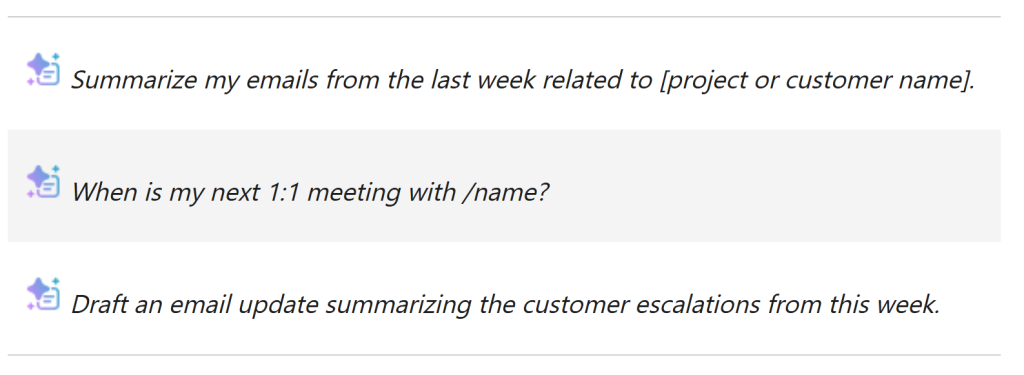
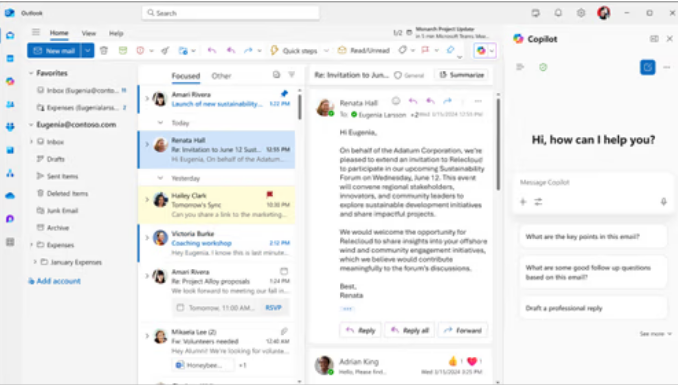
Every Microsoft 365 user with a work or school account and an eligible subscription can access Copilot Chat in Outlook at no additional cost. Within Outlook, Copilot Chat allows users to query their inbox, ask about upcoming meetings, review calendar context and get answers about emails and conversations using natural language prompts.
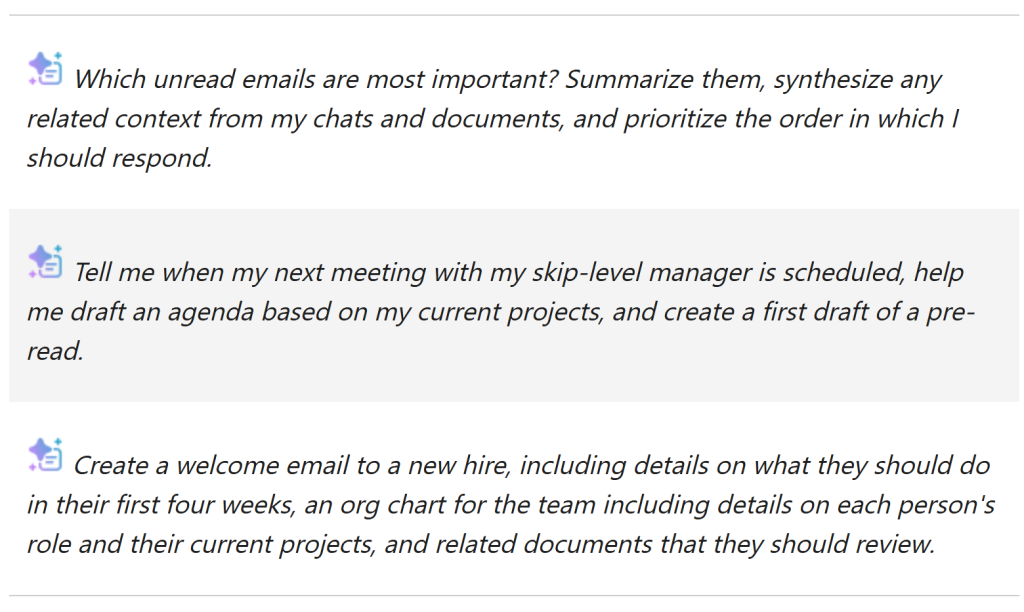
Users with a Microsoft 365 Copilot add-on license gain deeper capabilities in Outlook, including the ability to query enterprise data, access chats and files, and receive richer, context-aware responses that draw from across their Microsoft 365 environment.
Word, Excel, PowerPoint and OneNote: Add-On License Required
For the core productivity apps, access to Copilot Chat requires a Microsoft 365 Copilot Basic or Premium label, assigned by an administrator. Once enabled, the experience changes significantly.
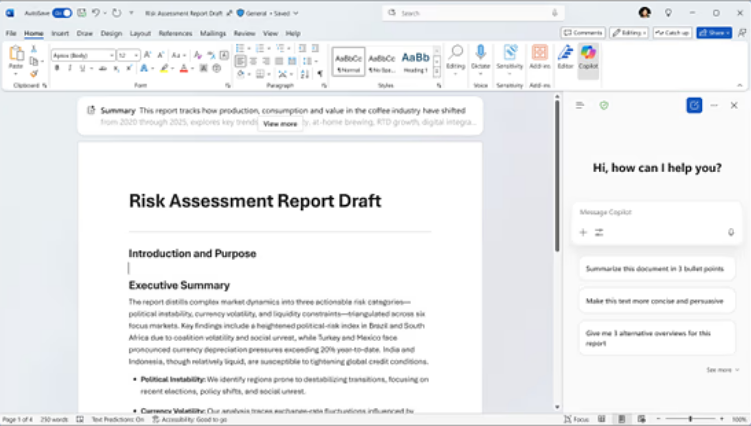
1)In Word, users can ask questions about a document, rewrite sections to match a different tone or audience, summarize content or generate new text from a prompt.
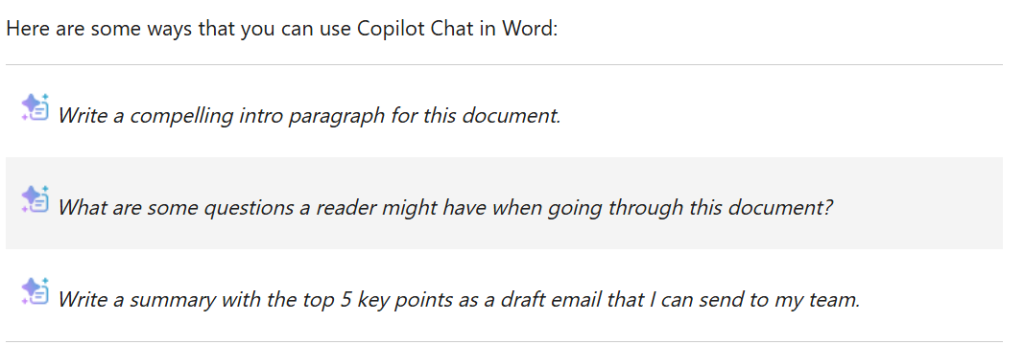
1) In Word, users can ask questions about a document, rewrite sections to match a different tone or audience, summarize content or generate new text from a prompt
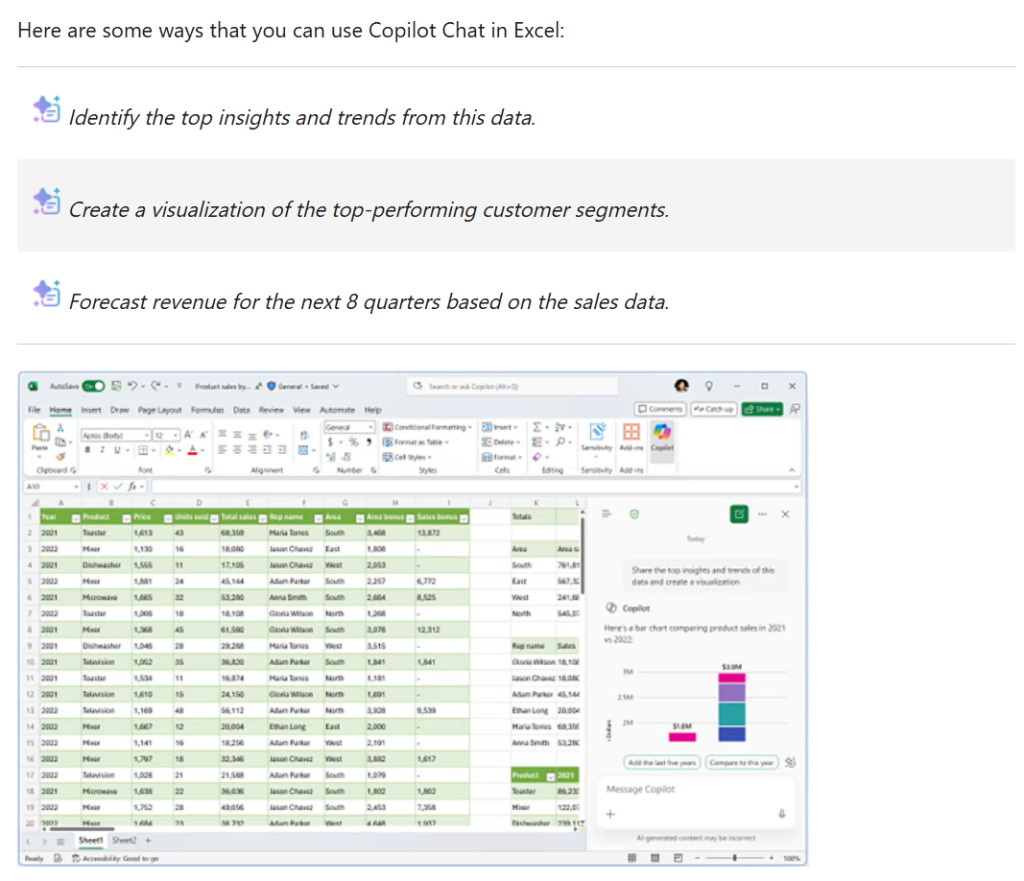
2) In Excel, Copilot can analyze data, suggest formulas, and surface patterns.
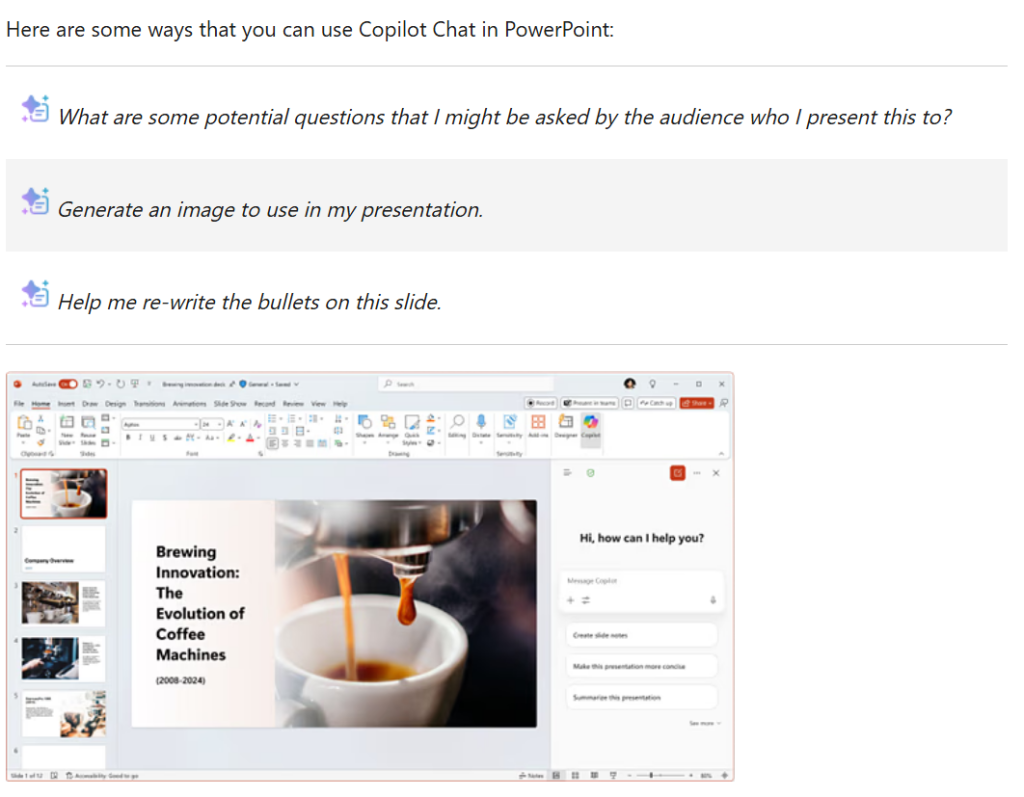
3) In PowerPoint, it can help build and refine presentations.
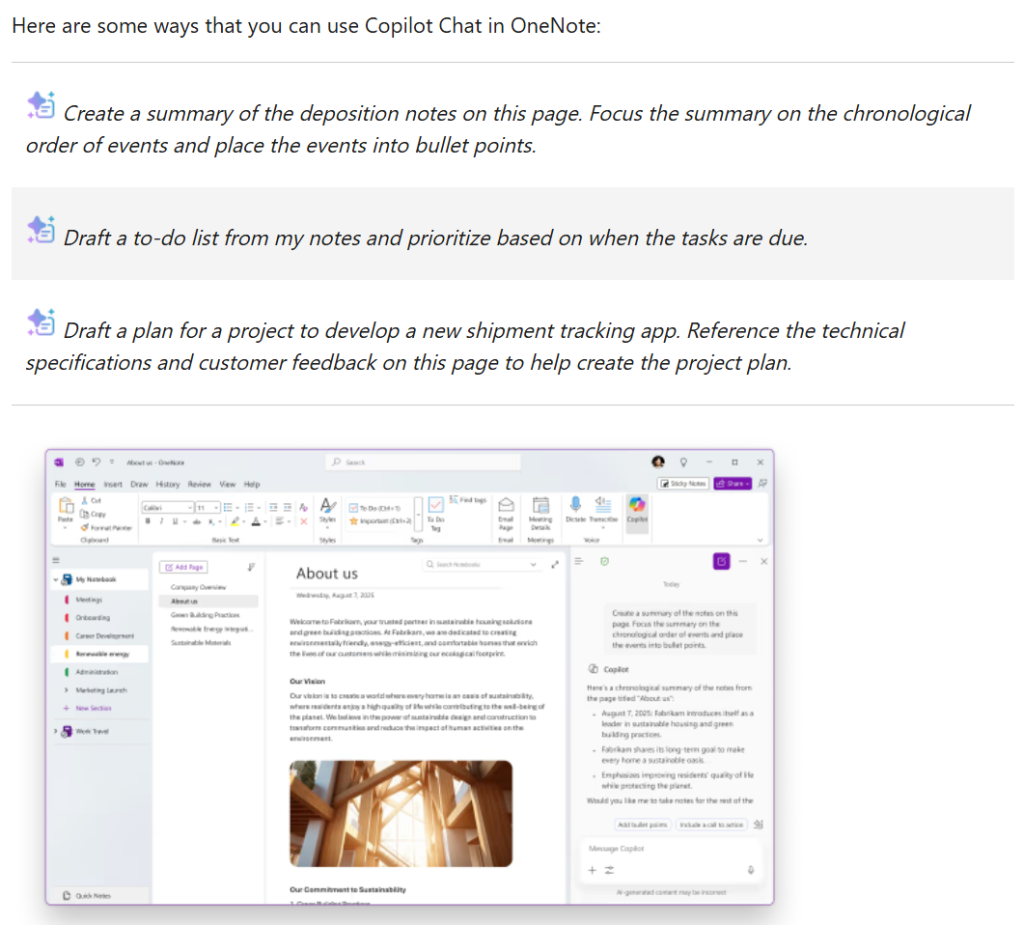
4) In OneNote, it can assist with organizing and expanding notes.
This tiered model means organizations can start with Outlook access for all users and incrementally expand Copilot Chat to power users or specific teams as they build confidence in the tooling.
Enterprise Data Protection and Agent Access
Across all apps, Copilot Chat operates under Microsoft’s enterprise data protection framework. User prompts and responses are not used to train AI models, and organizational data remains within the tenant boundary. Administrators retain full control over deployment, pinning, and access through the Microsoft 365 admin center and Cloud Policy service. Organizations can also enable pay-as-you-go agents, which allow Copilot to perform more complex, multi-step tasks on behalf of users, with costs metered by usage.
Use Cases: What Copilot Chat Enables for Business Teams
- Finance and Operations Teams: Analysts can upload large Excel files and ask Copilot to identify trends, flag anomalies, or generate summaries, reducing the time spent on manual reporting by a significant margin.
- Marketing and Communications Teams: Writers and content leads can use Copilot in Word to draft, restructure, and refine documents without switching between tools, maintaining flow while still leveraging AI assistance.
- Executive Assistants and Managers: With Copilot Chat in Outlook, busy professionals can ask for a summary of their inbox overnight, identify action items from meeting threads, or get a briefing on upcoming calendar commitments, all in seconds.
- IT and Compliance Teams: Administrators can use Copilot to help review and summarize policy documents or compliance materials uploaded directly into the chat, with the confidence that enterprise data protection standards are maintained throughout.
Benefits of Adopting Copilot Chat in Microsoft 365
- Embedded in existing workflows: No new applications to install or learn. Copilot Chat works inside the tools employees already use daily.
- Tiered access for flexible rollout: Organizations can start with Outlook for all users and expand Copilot access progressively, managing cost and change at their own pace.
- Enterprise-grade security: Built-in enterprise data protection ensures that sensitive organizational content is not exposed to third-party AI services.
- Consistent cross-platform experience: The same Copilot Chat interface works across the desktop apps, the Microsoft 365 Copilot app and Microsoft Edge, keeping the experience predictable across devices.
- Stronger ROI on existing Microsoft 365 investment: Organizations already licensed for Microsoft 365 can activate meaningful AI capabilities without building new infrastructure.
- Scalable agent capabilities: Pay-as-you-go agents allow businesses to extend Copilot into automated, multi-step workflows as their needs grow.
Conclusion
The arrival of Copilot Chat as a native feature inside Microsoft 365 apps marks a turning point for enterprise AI adoption. This is not a standalone tool that requires a separate strategy. It is a capability layer built on top of the productivity infrastructure most organizations already own, protected by the same security standards IT leaders expect from Microsoft.
For businesses that have been waiting for AI to be practical, accessible, and secure before committing, that moment has arrived. The priority now is ensuring that teams know how to use what is available, that licensing is configured correctly and that governance policies are in place before adoption scales.
Cloud 9 Infosystems works with organizations of all sizes to plan and execute Microsoft 365 Copilot deployments that are structured, secure, and aligned with real business goals. From licensing assessments to user enablement and ongoing support, our team helps clients move from awareness to active productivity gains.
Is your organization ready to activate Copilot Chat across your Microsoft 365 environment? Contact Cloud 9 Infosystems today to schedule a Microsoft 365 Copilot readiness assessment. Our specialists will help you understand what your current licensing unlocks, where an upgrade makes sense, and how to roll out Copilot in a way your teams will actually use. Let’s put your Microsoft investment to work.
Frequently Asked Questions
What is Copilot Chat in Microsoft 365?
Copilot Chat in Microsoft 365 is a built-in AI assistant available as a side-by-side panel within Word, Excel, PowerPoint, OneNote and Outlook. It allows users to ask questions, summarize documents, draft content and query their inbox or calendar using natural language, without leaving the app they are working in.
Can I use Copilot Chat without a Microsoft 365 Copilot license?
Yes, partially. All Microsoft 365 users with a work or school account can access Copilot Chat in Outlook at no additional cost, using it for web-grounded queries and basic inbox interactions. However, full access across Word, Excel, PowerPoint and OneNote requires a Microsoft 365 Copilot Basic or Premium add-on license assigned by your administrator.
What is the difference between Copilot Chat Basic and Copilot Chat Premium?
Copilot Chat Basic (included with eligible Microsoft 365 subscriptions) provides web-grounded AI chat, file uploads, image generation and access to Copilot Pages. Copilot Chat Premium (the full Microsoft 365 Copilot add-on) additionally grounds responses in your organizational data, including emails, files, meetings and chats and unlocks deeper in-app capabilities across Word, Excel, PowerPoint and OneNote.
How do I enable Copilot Chat in Word, Excel, and PowerPoint?
To activate Copilot Chat in the core Microsoft 365 apps, your IT administrator must assign a Microsoft 365 Copilot Basic or Premium license to your account. Once assigned, the Copilot panel becomes accessible directly within Word, Excel, PowerPoint and OneNote. Users signed in with a qualifying work or school account will see the Copilot button appear in the app ribbon or side panel.
Is Copilot Chat secure for enterprise use?
Yes. Copilot Chat operates under Microsoft’s enterprise data protection (EDP) framework. Prompts and responses are not used to train AI models and organizational content remains within your Microsoft 365 tenant boundary. Administrators retain full control over deployment, access policies and web search permissions through the Microsoft 365 admin center and Cloud Policy service.
What can Copilot Chat do in Outlook?
In Outlook, Copilot Chat allows users to query their inbox, summarize email threads, ask about upcoming calendar events and get answers about meetings using natural language. Users with a Microsoft 365 Copilot add-on license can also query enterprise data, access files and chats and receive context-aware responses drawn from across their Microsoft 365 environment.
How do I deploy Microsoft 365 Copilot across my organization?
Deploying Microsoft 365 Copilot involves three key steps: confirming licensing eligibility, assigning Copilot licenses to users through the Microsoft 365 admin center and enabling relevant policies through the Copilot Control System. Microsoft recommends a phased rollout starting with a pilot group, followed by user enablement training and governance configuration. Organizations working with a Microsoft partner like Cloud 9 Infosystems can accelerate this process with a structured readiness assessment and deployment plan.
Does Copilot Chat work on mobile devices?
Yes. The Microsoft 365 Copilot app is available for both iOS and Android. Users can access Copilot Chat, voice features, file uploads and Copilot Pages from their mobile devices. The mobile experience is consistent with the desktop version for core chat and productivity features, though some advanced in-app capabilities may be desktop-only depending on the app and license tier.
Recent Posts
Latest Blogs

Why Your MSP Shouldn’t Need Global Admin Access Anymore
Why should your MSP have Global Admin access? Explore Microsoft GDAP and Microsoft 365 Lighthouse, and learn how least-privilege, time-bound access strengthens security across Azure and Microsoft 365 environments and reduces credential risk.

Agentic AI in the Enterprise: Moving Beyond Copilot to Intelligent Workflows
Explore how Agentic AI moves enterprise AI beyond Copilot into intelligent workflows. Learn how AI agents automate business processes, connect Microsoft platforms, improve decisions, and scale securely with governance, data, and human oversight.

What Makes a Modern MSP? 6 Signs Smart Businesses Look For in 2026
Discover the six signs of a modern managed service provider (MSP), from connected platforms and AI-powered workflows to smarter routing, documentation, knowledge management, and continuous improvement for reliable IT outcomes for businesses in 2026.